

In this guide
- Before you start
- Step 1: Back up the infected site
- Step 2: Change your hosting and SFTP passwords
- Step 3: Get a starting list of infected files
- Step 4: Replace WordPress core files
- Step 5: Replace plugins and themes with clean copies
- Step 6: Hunt for hidden PHP files
- Step 7: Clean the database
- Step 8: Check the server-level files
- Step 9: Reset every password and key
- Step 10: Find out how they got in
- Step 11: Verify the cleanup
- Signs the cleanup didn’t work
Before you start
You’ll need:
- Hosting access: your control panel (cPanel, Plesk, Site Tools or similar) plus SFTP or SSH.
- Database access: phpMyAdmin or WP-CLI.
- A WordPress admin account, if you can still log in. You can do most of the work without it.
- A few uninterrupted hours. Rushing is how people delete the wrong file and miss the real backdoor.
The commands in this guide use WP-CLI, which most good hosts have installed. Run them over SSH from your WordPress folder (usually public_html). If you don’t have SSH, I explain the manual alternative in each step.
Tip: on an infected site, add --skip-plugins --skip-themes to WP-CLI commands. That stops a malicious plugin from loading and hiding itself while you inspect the site.
When to stop and get help instead. If your site is an online store, if your host has suspended it, or if you already cleaned it once and the malware came back, a do-it-yourself cleanup is risky. In these cases, missing a single backdoor means starting over, and with a store, customer card data may be at risk. I can clean it for you for $95.
Step 1: Back up the infected site
Yes, back up the infected version. It’s your safety net if a step breaks something, and it’s evidence. You’ll want to look at the original files later to work out how the attacker got in.
wp db export ~/infected-db-$(date +%F).sql
tar -czf ~/infected-files-$(date +%F).tar.gz -C ~ public_html
Keep these files outside your website folder, and never restore them over a cleaned site. No SSH? Use the backup tool in your hosting panel, or download the whole folder over SFTP and export the database from phpMyAdmin.
Step 2: Change your hosting and SFTP passwords
Change the passwords for your hosting account, SFTP/SSH users, and the hosting email account first. If the attacker has these, everything you clean can be put back in minutes.
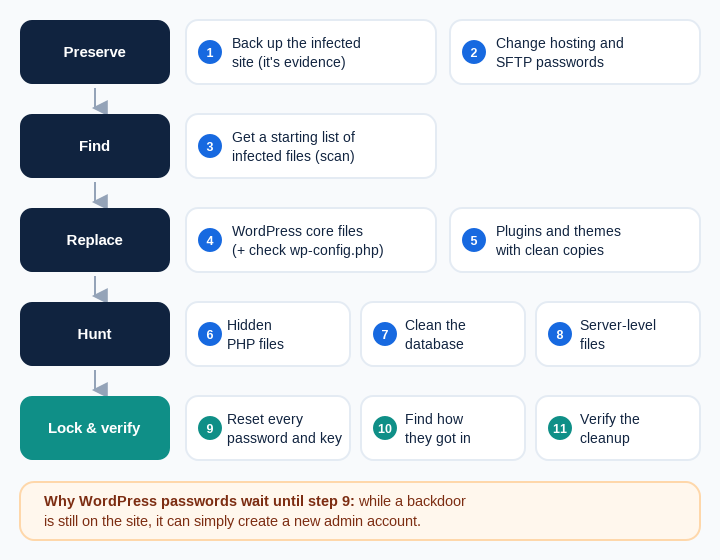
Leave WordPress passwords and security keys until the end (step 9). There’s no point resetting them while a backdoor that can create new admin users is still on the site.
Step 3: Get a starting list of infected files
Run a scan to see what’s obviously wrong. Your host may already have sent a report, and Wordfence’s free scan is a reasonable second opinion. Write down every file it flags. (If Wordfence is what alerted you, see what to do when Wordfence finds malware.)
Treat this list as a starting point, not the whole picture. Scanners are good at known malware and bad at custom code, database injections, and anything that only runs for certain visitors. I explain why in my guide to WordPress malware scanners.
With SSH access, you can also get a read-only overview before you touch anything. My free, open-source wptriage scanner compares core, plugins and themes with the official releases, and lists PHP in uploads, suspicious .htaccess rules, unknown administrators, and injected options. It doesn’t modify the site, so it’s safe to run first:
cd ~
git clone https://github.com/wpmalware-removal/wordpress-malware-triage-scanner.git
php wordpress-malware-triage-scanner/bin/wptriage scan /path/to/your/site
Keep the scanner outside your site folder. The report lists each finding with the file or database row it came from.
It also helps to see what changed recently:
find . -type f -name "*.php" -mtime -30 -printf '%TY-%Tm-%Td %TH:%TM %p\n' | sort -r | head -50
This lists PHP files modified in the last 30 days, newest first. Be aware that malware often fakes its timestamps to look old, so an “old” date proves nothing.
Step 4: Replace WordPress core files
WP-CLI can compare every core file against the official copy:
wp core verify-checksums
It reports files that were changed (“doesn’t verify against checksum”) and extra files that shouldn’t be there (“File should not exist”). Extra PHP files in wp-admin or wp-includes are almost always malware.
Then reinstall the core files without touching your content:
wp core download --version=$(wp core version) --skip-content --force
This overwrites wp-admin, wp-includes and the root files with clean copies of the same version. It doesn’t touch wp-content or wp-config.php. Delete any extra files the checksum command reported, and run it again until it’s clean.
Without SSH: download the same WordPress version from wordpress.org, delete your wp-admin and wp-includes folders, upload the fresh ones, and overwrite the root .php files. Don’t overwrite wp-config.php.
Check wp-config.php by hand
wp-config.php isn’t covered by checksums, and it’s a favorite hiding place. Open it and look at the very top and very bottom of the file. Watch for include or require lines pointing to odd files, long strings of random-looking characters, and code that doesn’t look like settings. A clean wp-config.php is mostly simple define(...) lines.
Step 5: Replace plugins and themes with clean copies
For plugins from wordpress.org, WP-CLI can check them too:
wp plugin verify-checksums --all
Premium plugins will show as “could not retrieve checksums”. That’s normal, and you’ll replace those by hand. The safest move is to reinstall every plugin from a trusted source, whether or not it was flagged:
wp plugin install $(wp plugin list --field=name) --force
This reinstalls every wordpress.org plugin at its latest version. Download premium plugins again from the vendor’s site and upload them over the old copies.
While you’re in there:
- Delete plugins and themes you don’t use. Inactive plugins can still be exploited, and they’re a common hiding place.
- Delete nulled (pirated) plugins and themes completely. Many come with a backdoor already built in. If you need the plugin, buy a real license.
- Look for plugins you don’t recognize. Attackers install fake plugins with believable names like “wp-security-patch” or “cache-helper”. If you didn’t install it, find out what it is.
- Check
wp-content/mu-plugins. “Must-use” plugins load automatically and don’t appear in the normal plugin list. Most sites have nothing here, or only files from their host. - Check the drop-in files
wp-content/advanced-cache.php,object-cache.phpanddb.php. They’re legitimate if your caching plugin created them, but they’re also a known place to hide code. Some recent malware puts its “restore myself” logic exactly here, or at the top ofwp-config.php. - Remove file manager plugins once the cleanup is done. They’re handy, but they’re also a frequent way in, and attackers sometimes install extra ones.
For your theme, reinstall it from the original source. If you have a child theme with custom code, read its functions.php and header and footer templates line by line. Nothing replaces those files with a clean copy, so this is where a bit of patience pays off.
Step 6: Hunt for hidden PHP files
Your uploads folder should hold images and documents, not code:
find wp-content/uploads -type f \( -name "*.php" -o -name "*.phtml" -o -name "*.phar" \)
Some plugins leave an index.php containing only <?php // Silence is golden., which is harmless. Anything else in uploads that runs as PHP deserves a close look. Usually it’s malware.
Next, search the whole site for code patterns malware relies on:
grep -rnE --include="*.php" "eval\(|base64_decode\(|gzinflate\(|str_rot13\(|assert\(|\\\$_(POST|REQUEST|COOKIE)\[" wp-content | less
Legitimate plugins use some of these functions too, so don’t delete every match. What gives malware away is the combination: eval(base64_decode(...)) on one line, a long blob of random characters, variable names like $O0O0O0, or code that runs whatever arrives in a cookie or POST field.
Two more searches that often find what the first one misses:
# Files with extremely long lines (packed or obfuscated code)
grep -rlE --include="*.php" '.{3000,}' wp-content

# Code that loads a file disguised as an image or icon
grep -rnE --include="*.php" "@include|include\s*\(.*\.(ico|png|jpg|gif)" .
A pattern I see a lot: the site is clean in the morning and infected again the next day. The scanner keeps finding the same files. The reason is almost always something that recreates them: a cron job in the hosting panel that downloads the malware again every few hours, a fake plugin in mu-plugins, or a second copy of the backdoor in a folder nobody checked. Deleting the visible files only treats the symptom. Find whatever rebuilds them first.
Step 7: Clean the database
Malware in the database survives a perfect file cleanup, so don’t skip this step. Replace wp_ with your table prefix if it’s different. wp db prefix will tell you.
Look for unknown administrators:
wp user list --role=administrator --fields=ID,user_login,user_email,user_registered
Delete any account you don’t recognize, and reassign its content to a real user. Some malware hides its admin from the Users screen in the dashboard, so this command or the wp_users table is the reliable place to check.
Look for scripts in posts and pages:
wp db query "SELECT ID, post_title, post_type FROM wp_posts WHERE post_content LIKE '%<script%' OR post_content LIKE '%<iframe%' OR post_content LIKE '%eval(%'"
Look for scripts in options and widgets:
wp db query "SELECT option_name, LENGTH(option_value) AS size FROM wp_options WHERE option_value LIKE '%<script%' OR option_value LIKE '%eval(%' OR option_value LIKE '%base64_decode%'"
Some matches will be legitimate, such as an analytics snippet or a chat widget you added on purpose. Look at each one before you change it.
Check the site address and scheduled tasks:
wp option get siteurl
wp option get home
wp cron event list
If siteurl or home points anywhere other than your own domain, that’s your redirect. In the cron list, look for hooks with random names or ones no plugin of yours would create.
Look for code hidden in options and transients. Self-restoring malware often stores its payload in the database and writes it back to disk on the next page load. Look for large or oddly named options, especially transients:
wp db query "SELECT option_name, LENGTH(option_value) AS size FROM wp_options WHERE option_value LIKE '%base64%' OR option_value LIKE '%gzinflate%' OR option_value LIKE '%eval(%' ORDER BY size DESC LIMIT 30"
Transients are temporary cache entries, so they’re safe to clear: wp transient delete --all. Delete the other suspicious options only after you’ve looked at them.
Remove carefully. Many WordPress values are “serialized”, which means a raw SQL find-and-replace can corrupt them. Edit posts in the editor, or use wp search-replace with --dry-run first, because it handles serialized data correctly. No SSH? Every query above also works in phpMyAdmin’s SQL tab. For more detail, see WordPress database malware removal.
Step 8: Check the server-level files
These live outside WordPress, which is exactly why scanners and plugins often miss them.
.htaccessfiles. List them all withfind . -name ".htaccess". In each one, look for redirects to other domains, rules that checkHTTP_REFERERorHTTP_USER_AGENT(which is how malware targets only Google visitors or phones), and anyphp_value auto_prepend_fileline..user.iniandphp.iniin your site folders. Anauto_prepend_filesetting here makes a malicious file run before every page.- Hosting cron jobs. In your control panel, open Cron Jobs. A line you didn’t add that runs
wget,curlor a PHP file is a classic way to reinstall malware. - Other sites in the same hosting account. If you host several sites in one account, an infected site next door can reinfect yours. Clean all of them, or none of them will stay clean.
Step 9: Reset every password and key
Now that the backdoors are gone, lock things down:
- WordPress users: reset the password of every administrator and editor.
- Application passwords: revoke them before rotating the keys, because they keep working after a password change. Check each admin with
wp user application-password list <user>and remove them withwp user application-password delete <user> --all, or under Users → Profile → Application Passwords. - Login sessions and security keys: run
wp config shuffle-salts, and end sessions withwp user session destroy <user> --all. This signs everyone out, attacker included. - Database password: change it in your hosting panel, then update
DB_PASSWORDinwp-config.php. - API keys stored in plugins (SMTP, payment gateways, backups) if you think they may have been exposed.
- Remote management connections. If you use a service that manages sites remotely (for example UpdraftCentral, MainWP or ManageWP), disconnect and reconnect it with fresh keys.
- Everyone’s browser. Ask everyone who logged in to the dashboard while the site was infected to close all its tabs, clear the site’s data in their browser, and change any password they typed in during that time. Some malware records logins, and an old tab or a malicious service worker can re-upload the malware the next time an admin logs in. It sounds like overkill, but I’ve seen sites reinfected exactly this way.
Step 10: Find out how they got in
Skip this step and you’ll probably be doing the whole cleanup again next month. The usual entry points are:
- An outdated plugin or theme with a known vulnerability. Check yours against a vulnerability database such as WPScan, Patchstack or Wordfence Intelligence.
- A nulled plugin or theme that came with a backdoor already inside.
- A weak or reused password, often an admin account without two-factor authentication.
- A neighboring site in the same hosting account.
If your host keeps access logs, look up the time the first malicious file appeared in your backup from step 1 (ls -la --time-style=full-iso <file>). Then search the logs for POST requests around that time. That often points straight at the vulnerable plugin.
Then harden the site (my WordPress malware protection checklist covers this in more detail):
- Update WordPress, plugins and themes, and remove what you don’t use.
- Add
define('DISALLOW_FILE_EDIT', true);towp-config.php. This disables the built-in code editor that attackers like to use. - Set file permissions to 644 for files and 755 for folders. Use the strictest setting your host allows for
wp-config.php. - Turn on two-factor authentication for every administrator.
Step 11: Verify the cleanup
Don’t trust a single clean scan. Test the site the way an affected visitor would:
- Open it on your phone over mobile data, not Wi-Fi.
- Search for your site on Google and click the result.
- Check what Google’s crawler sees:
curl -sIL -A "Mozilla/5.0 (compatible; Googlebot/2.1; +http://www.google.com/bot.html)" https://example.com/
curl -sIL -e "https://www.google.com/" https://example.com/
Every response should come from your own domain. A Location: header pointing somewhere else means a redirect is still active.
Then:
- Run your scanner again.
- In Google Search Console, open Security issues and request a review if Google flagged the site. Also check Settings → Users and permissions: attackers sometimes verify themselves as owners of your site to push spam pages. Remove anyone you don’t know, and delete their
google*.htmlverification files. - If your host suspended the site, send them a short summary of what you removed and ask for a rescan.
- For the next few weeks, check for new PHP files:
find . -type f -name "*.php" -mtime -2.
Signs the cleanup didn’t work
If the malware comes back within days, you missed one of three things: a backdoor, a process that reinstalls the malware (cron job, mu-plugin, database payload, neighboring site, or a login that still works), or the original entry point. I explain all of these on WordPress malware that keeps coming back. Running the same scan again won’t find it. That’s the point where an experienced second pair of eyes saves you a lot of time. Tell me what you’re seeing and I’ll take it from there.